


(🔥LAST DAY – 50% OFF) Remote Control for TikTok Scrolling with Smartphone Holder Stand, Wireless Scroller Page Turner, Camera Shutter Video Recording for iOS Android, Cellphone Selfie Accessory,Upgraded
(🔥LAST DAY – 50% OFF) Remote Control for TikTok Scrolling with Smartphone Holder Stand, Wireless Scroller Page Turner, Camera Shutter Video Recording for iOS Android, Cellphone Selfie Accessory,Upgraded
Regular price
$23.99
Regular price
$49.99
Sale price
$23.99
Couldn't load pickup availability

Scroll Smarter, Capture Better – Hands-Free Control for TikTok and More!

Lazy Remote Control for TikTok Scrolling
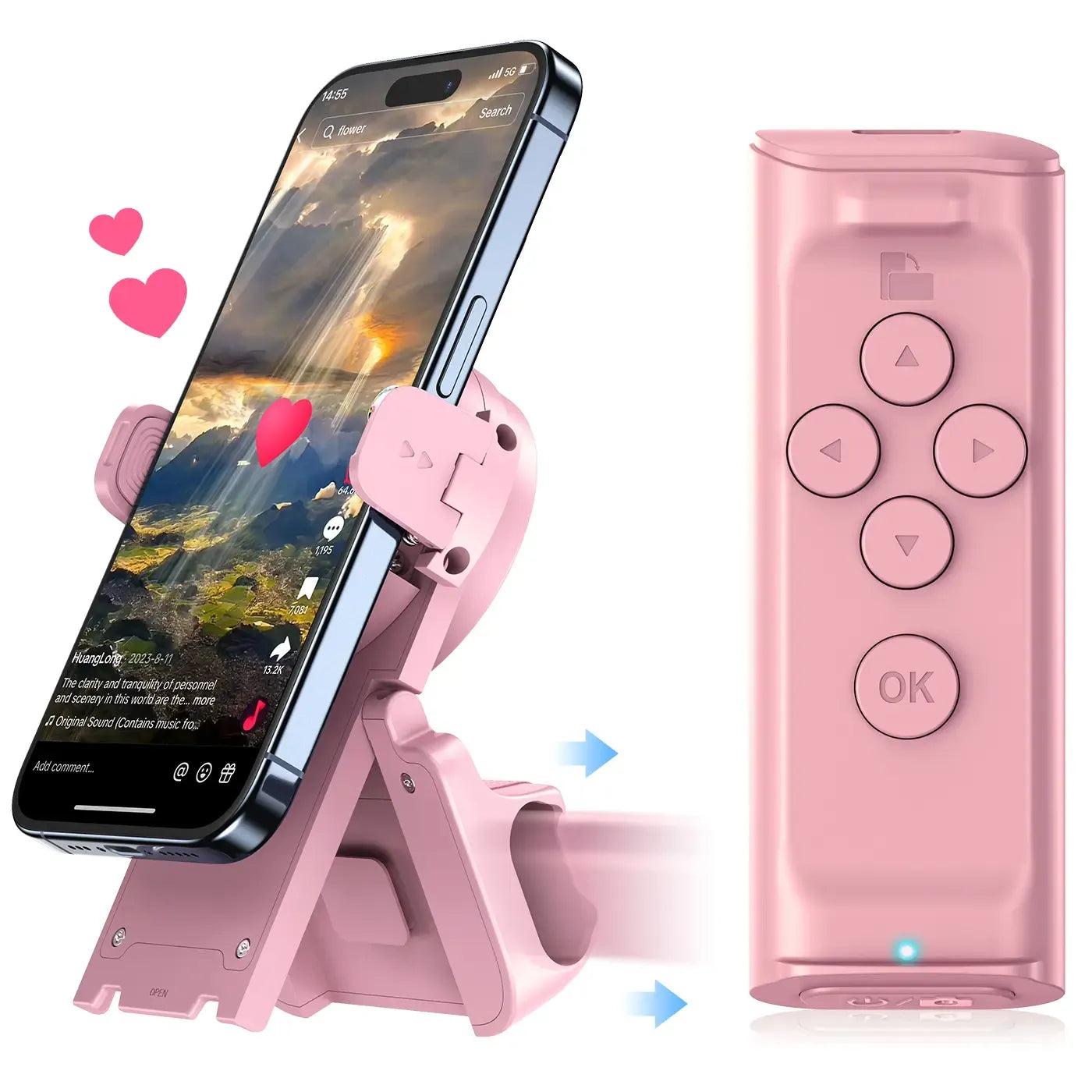
Our wireless remote effortlessly control Tik Tok videos scrolling. Control everything—swipe up/down, pause/play, adjust volume, and give likes continuously. Easily engage with live streams by unlimited likes feature. Enhance your hasslefree Tiktok experience.

Rotatable Phone Stand for Comfort and Ease
With adjustable design, this desktop holder allow you to adjust your preference viewing angle. Enjoy hands-free comfort whether watching videos, video calling, or charging. Play a good role in your office, kitchen, nightstand, dining table(Fits devices up to 3.8 inches wide)

Camera Shutter & Video Recording Remote
This remote allows you to trigger image or video recording from up to 65 feet away, enabling you to take family photos, selfies or videos by yourself, no matter where you are.(NOTE: Upgraded version works with default camera & Tiktok's camera function)

Page Turner for Kindle/E-Books App
Our multifunctional remote control scroller helps you turn pages in the Kindle app for a more comfortable reading experience. Ideal for long reading sessions.(Note: ONLY compatible with Kindle APP or other e-book APPs & NOT support direct use on reading devices)

Power-Saving Mode & Easy to Set-Up
PUTARE Scroller remote is compatible with iOS(version 14.8 and above) and Android devices.
NOTE: NOT Compatible with Motorola Razr Series and Galaxy S series.

MUST DO before Pairing on iPhone/iPad - Open the 'Zoom'feature.
Through 'Settings' - '>Accessibility' - 'Zoom' - Double-tap the screen with three fingers to restore (Step 1-4)
NOTE: Some users may encounter the following problems:


You may also like
-
🔥LAST DAY - Buy 1 Get 1 Free🔥 ✨Transferproof Color-Changing Lipstick💄CrystalClear Color Alchemy 💋 Auto-Tints on Contact!
Regular price From $19.99Regular price$39.99Sale price From $19.99Sale -
Soothing Prep Lip Mask — Cooling peel-off lip mask for smoother lip prep and a hydrated feel
Regular price From $18.00Regular price$25.00Sale price From $18.00Sale -
Get Dreamy Toning Cream
Regular price From $19.97Regular price$0.00Sale price From $19.97 -
3 Hours Only⏰: FREE Brush + Flawless Skin with Ultimate Blurring Setting Powder!
Regular price $29.97Regular price$99.99Sale price $29.97Sale


